
Everyone wants less adds, malware, banners, 3rd party cookies, trackers, web bugs, unwanted programs, scammers, and the list goes on. But you’re not using a custom host file!?
You can effectively block ads, banners, 3rd party Cookies, 3rd party page counters, web bugs, and even most hijackers and possibly unwanted programs. The HOST file prevents the connections that supply these annoyances. The Hosts file is loaded into the cache memory at startup by your computers operating system (OS), so there is no need to turn it on, adjust or change any settings. You’re OS will automatically look for the existence of a HOSTS file and if found, checks the HOSTS file first — for entries to the web page you just requested.
The 0.0.0.0 (prefix) is considered the location of your computer, so when the page requests an entry listed in the custom HOSTS file you are viewing, your computer thinks 0.0.0.0 is the location of the file. When this file is not located, it skips onto the next file, and thus the ad server is blocked from loading the banner, Cookie, or some malicious tracker, or javascript file. The blocking of the content by the HOST file also prevents the server from tracking your movements. Why? — because in some instances Ad Servers will try silently to open a separate connection on the webpage you are viewing, record your actions then yes — follow you to additional sites you may visit.
Also using a well-designed HOSTS file can speed the loading of web pages by not having to wait for these ads, annoying banners, hit counters, etc. to load. A custom HOST file contains a list of thousands of entries of known ads, banners, 3rd party Cookies, page counters, web bugs, and even hijackers and unwanted programs servers. All are getting blocked in the background as you request a webpage, log in to your bank, double-click on a link, check your e-mail by the HOST file — in microseconds.
If your system was to get infected with malware or some crazy computer parasite — a HOSt file is a two-way file, meaning if some parasite does get into your system usually bundled with other products, the culprit basically cannot get out or call home as long as the necessary entries exist.
Custom HOST file also protects your Privacy and Security as it blocks sites that may track your viewing habits, also know as click-thru tracking or Data Miners.
Another great feature of the HOSTS file is that it is a two-way file, meaning if some parasite does get into your system (usually bundled with other products) the culprit cannot get out (call home) as long as the necessary entries exist. That is why it’s important to keep your HOSTS file up to Date.
It is important to note now that you have discovered the many benefits of a custom HOST file that it is not a cure-all against all the dangers on the Internet, but it does provide another very effective, and useful layer of protection.
The Location of your HOST file and how upgrade to a custom one
Windows 10/8/7 = C:\Windows\System32\drivers\etc
There are several custom HOST files out there on the internet, one i recommend is this one here.
- Simply locate the hosts zip file you just downloaded, by default it should be located in your “User” Download folder.
- Highlight the file (single-click) then right-click and select > Extract All from the menu
- Make sure there is a check in the “Show extracted files when complete” option
- Next: right-click the installer (mvps.bat) and select: Run as Administrator (see below)
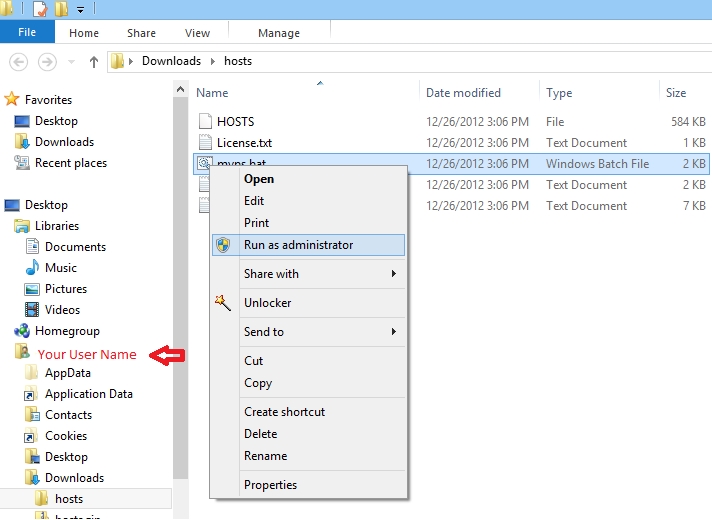
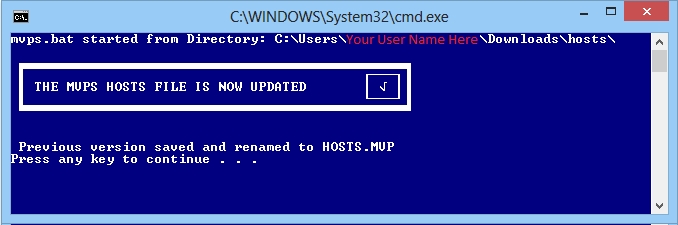
- Ok, the UAC prompt and the batch file will run — which will backup the existing HOSTS file to HOSTS.MVP then copy the updated HOSTS file to the proper location. You should see a completed prompt (press any key) and that’s it.
- If you were previously using the MVPS HOSTS and Windows 7 — the process is exactly the same.
The below screenshot shows the MVPS HOSTS FILE IS NOW UPDATED message
To activate it right away, you can simply restart your computer or if you would like to continue working follow these steps.
- Close all browser windows.
- Press the Windows key + R on your keyboard
- Type cmd and press Enter
- In the Command Prompt type in
1
ipconfig /flushdns
and press Enter
- Close the Command Prompt
You’re all set! Your computer is now using a custom HOST file! 💯
Comments powered by Disqus.